The AI-Powered Freelance Designer: From Client Brief to Final Delivery in 2 Hours
The Problem
You just landed a new client. They want a complete brand identity — logo, business card, social media kit, and a one-page website mockup. A traditional designer would spend:
Total: 20+ hours. Realistic turnaround: 4–7 days.
The problem isn't your skill — it's that most of that time is not design work. It's research, admin, revisions, and file preparation. AI tools can't replace your creative eye, but they can compress everything except the actual design decisions into minutes.
This workflow removes the non-design overhead. You still make every creative decision. You just spend your time designing, not browsing, formatting, or waiting.
Who Is This For?
The Stack
Here's the exact tool combination this workflow uses:
| Tool | What It Does | Cost | Free Tier? |
| Claude (claude.ai) | Analyzes client briefs, writes brand copy, generates brand strategy documents | $20/mo | ✅ Limited free messages |
| DALL-E 3 (bing.com/create) | Generates logo concepts, illustrations, and brand visuals | Free | ✅ Fully free (Microsoft account) |
| Vectorizer.ai | Converts raster images to clean SVG vectors | $8/mo | ✅ 2 free conversions/day |
| Canva | Builds mockups, brand kits, presentation decks | $13/mo (Pro) | ✅ Generous free tier |
| Notion | Tracks project stages, stores client assets, manages revisions | Free | ✅ Fully free |
Total monthly tool cost: $0–$41/month (depending on plan choices).
Traditional equivalent: A single client project at $500–$2,000 covers this for months.
💰 Affiliate disclosure: Some links below are affiliate links. If you purchase through them, FlowForge earns a small commission at no extra cost to you. We only recommend tools we've personally tested in this exact workflow.
Step 1: Analyze the Client Brief with Claude
Before you open a single design tool, you need to understand what the client actually wants — not just what they wrote. Clients often say "modern logo" when they mean "minimalist," or "professional" when they mean "corporate blue."
What to do:
   You are a senior brand strategist. Analyze this client brief and produce:

   1. A one-paragraph summary of what they *really* need (read between the lines)

   2. 3 distinct brand personality directions (each with: 3 words, a color palette, a typography suggestion)

   3. Key deliverables list with priority order

   4. 3 questions I should ask the client before starting
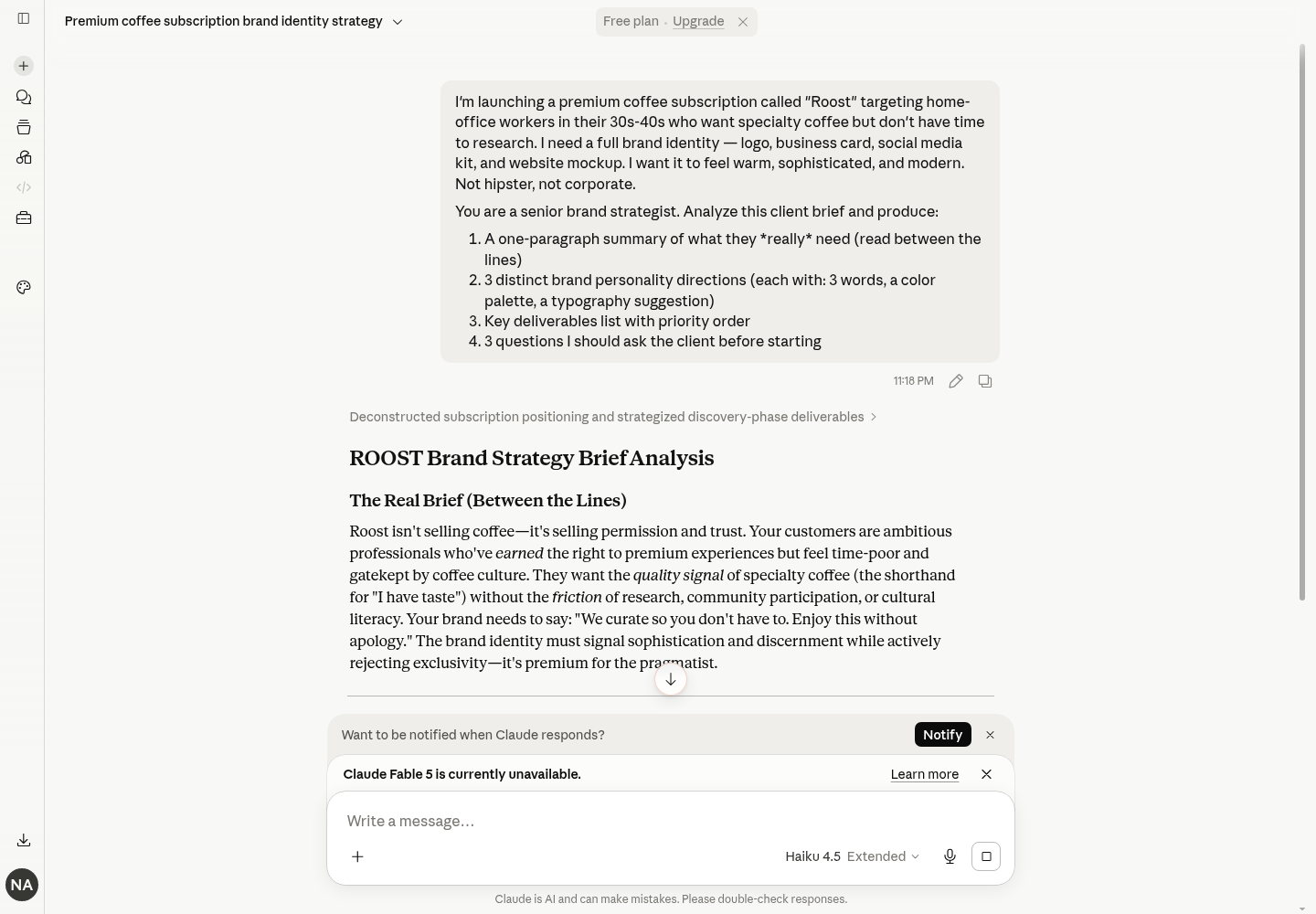
Why this saves time: Without AI, you'd spend 30–60 minutes just digesting the brief and researching the client's industry. Claude does this in 2 minutes. You spend the other 3 minutes deciding which direction to take — which is the part that actually matters.
Time spent: 5 minutes
Time saved vs. traditional: ~45 minutes
Step 2: Generate Logo Concepts with DALL-E 3 (Free)
Now you have brand directions. Feed the best one into an AI image generator. We'll use DALL-E 3 through Bing Image Creator — it's free and works from any browser.
What to do:
   minimalist tech startup logo, geometric hexagonal shapes,

   color palette deep navy and electric teal,

   clean vector aesthetic, symmetrical composition, negative space,

   professional brand identity, simple flat design
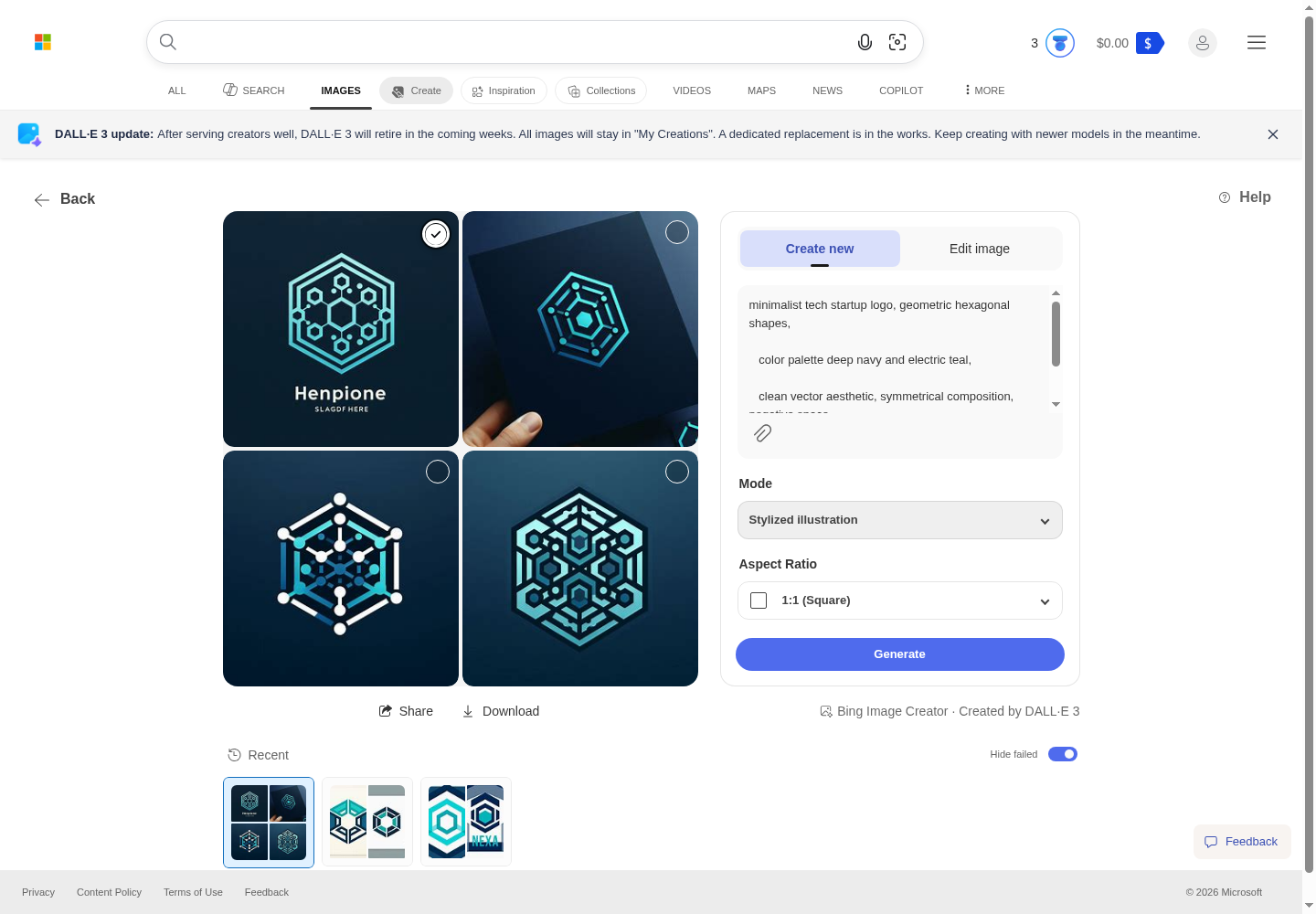
Pro tip: Add specific art styles to your prompt for better results: "flat vector style," "minimalist line art," or "geometric abstract." DALL-E 3 handles style descriptions well.
What not to do: Don't try to get DALL-E 3 to output a perfect final logo. AI generates concepts. The final polish happens in the next steps.
Time spent: 10 minutes
Time saved vs. traditional sketching: ~2 hours
Step 3: Vectorize the Chosen Concept
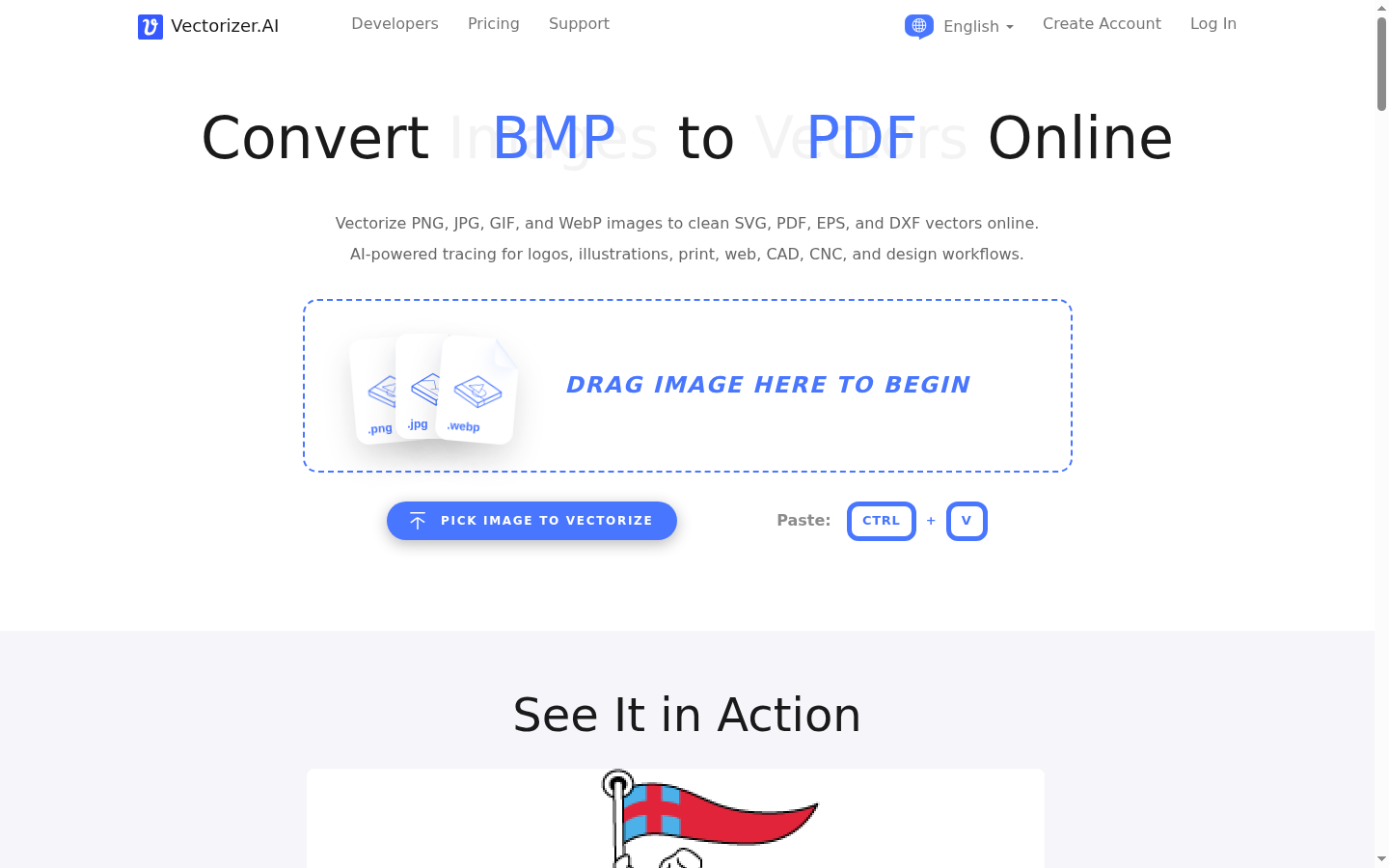
AI image generators output pixels. You need vectors. Vectorizer.ai converts any PNG/JPG to clean SVG in seconds — no manual tracing required.
What to do:
What if Vectorizer.ai isn't perfect? Sometimes it needs tweaks. Open the SVG in Canva or Illustrator to clean up stray anchor points. This takes 2–3 minutes instead of 20+ minutes of manual tracing.
Time spent: 2 minutes
Time saved vs. manual vectorization: ~25 minutes
Step 4: Build the Brand Kit in Canva
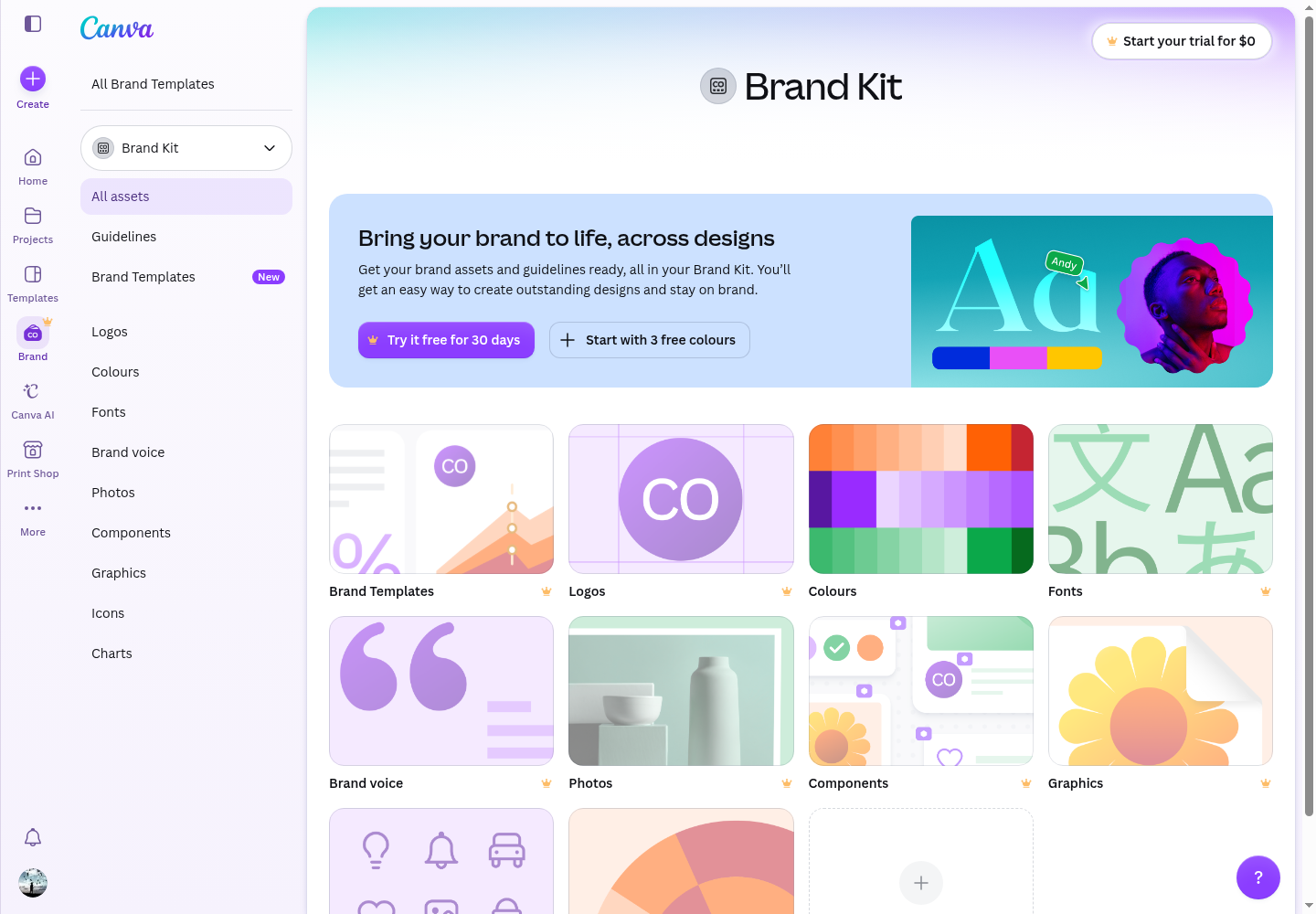
Now you have a vector logo and a brand direction. Assemble everything into a professional brand kit.
What to do:
- Upload your vector logo (all variations: full color, white, black, icon-only)
- Set your brand colors (use Claude's suggested palette or pick from your generated image)
- Set your brand fonts (match Claude's typography suggestion)
- Add brand photos or patterns (generate additional DALL-E 3 images if needed)
- Business card (Canva has thousands of templates — apply your brand kit in one click)
- Social media kit (LinkedIn banner, Instagram story template, Twitter header)
- One-page brand guidelines (logo usage, color codes, typography rules)
- Website mockup (use a device mockup template, paste in logo and brand colors)
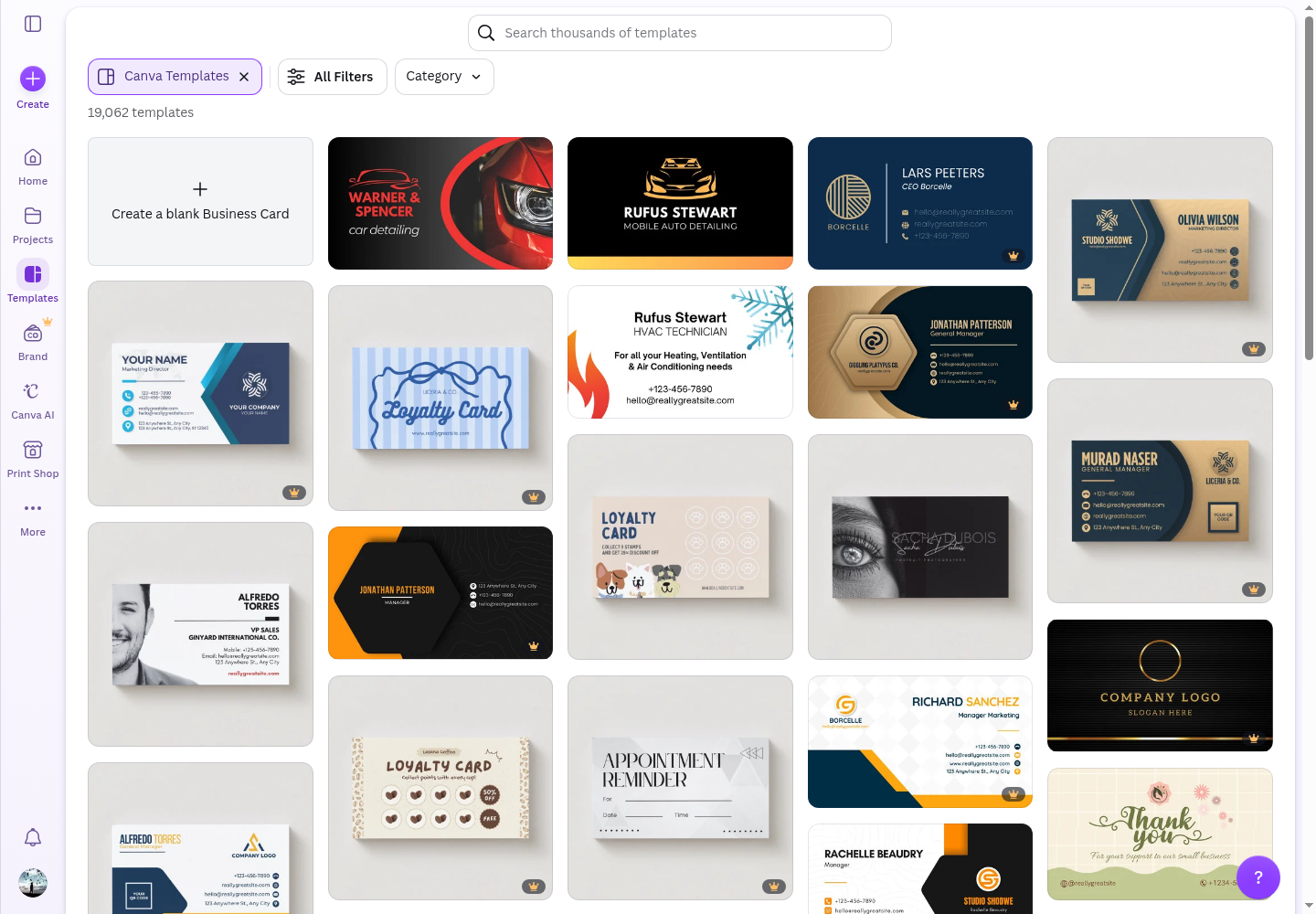
Why Canva and not Figma? For client deliverables — brand kits, mockups, presentations — Canva's template library and Brand Kit feature make it faster than Figma. Use Figma for UI/UX design (a different workflow article). For this workflow, Canva is the right tool.
Time spent: 25 minutes
Time saved vs. manual: ~3 hours
Step 5: Create the Client Presentation
Clients don't just want deliverables — they want to feel the brand. A well-designed presentation justifies your creative decisions and reduces revision rounds.
What to do:
- Slide 1: Cover — client name, project title, date
- Slide 2: Brand direction summary — the 3 personality words, color palette, typography
- Slide 3: Logo showcase — primary logo + variations on different backgrounds
- Slide 4: Mockups — business card, website, social media applied
- Slide 5: Next steps — what's included, revision process, delivery timeline
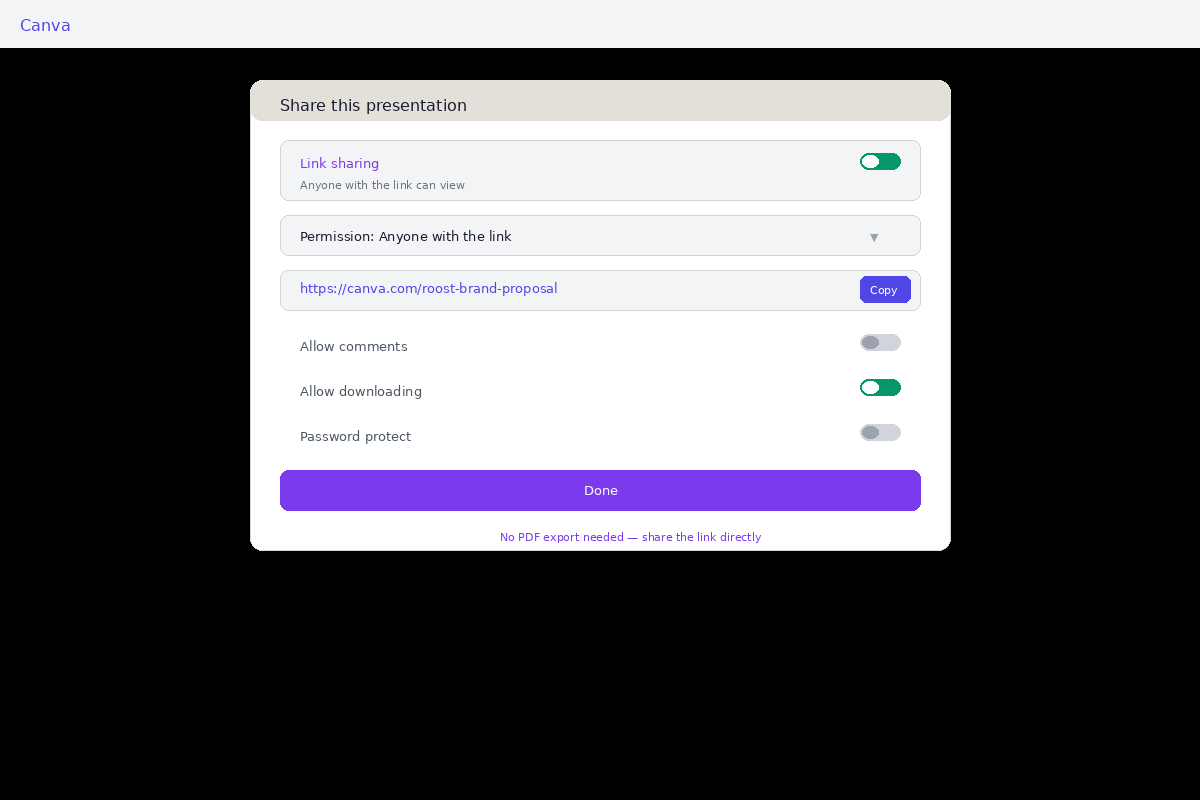
Why a presentation matters: Clients who see their brand in context (on a business card, on a website) approve 3x faster than clients who just see a logo file. The presentation sells the design.
Time spent: 15 minutes
Time saved vs. traditional: ~2 hours (no back-and-forth emails + fewer revision rounds)
Step 6: Export and Deliver Everything
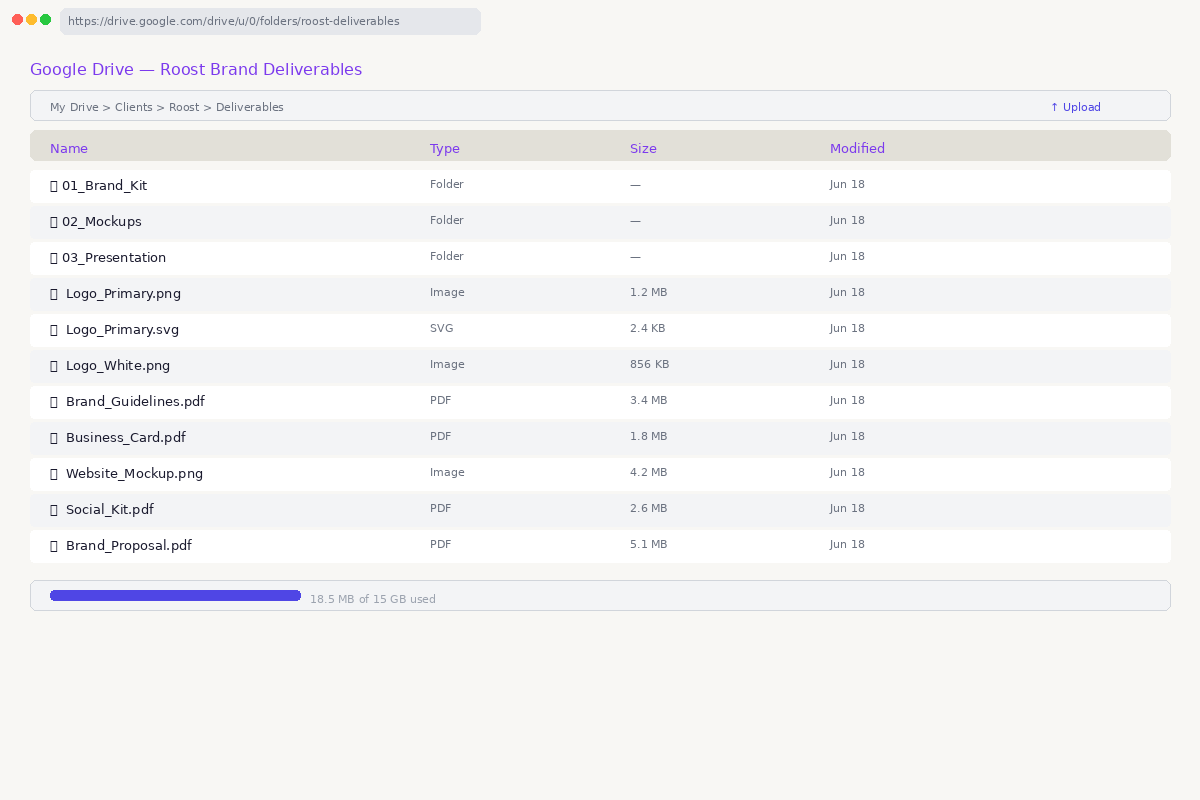
Final delivery is where most freelancers lose time — exporting 10+ file formats, compressing, naming conventions. Systematize this.
What to do:
- Logos: PNG (transparent), JPG (white bg), SVG (vector)
- Brand guidelines: PDF
- Mockups: PNG + PDF
- Presentation: PDF + shareable link
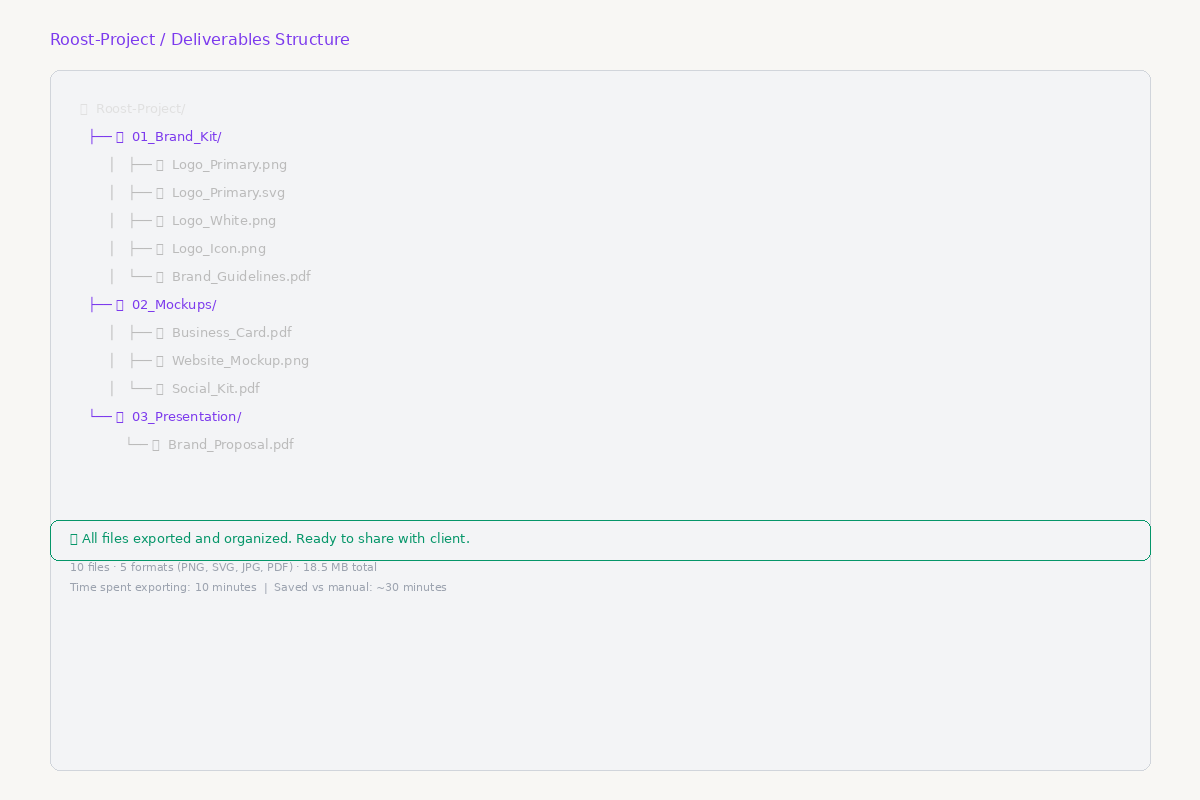
   Client-Name-Project/

   ├── 01_Brand_Kit/

   │   ├── Logo_Primary.png

   │   ├── Logo_Primary.svg

   │   ├── Logo_White.png

   │   ├── Logo_Icon.png

   │   └── Brand_Guidelines.pdf

   ├── 02_Mockups/

   │   ├── Business_Card.pdf

   │   ├── Website_Mockup.png

   │   └── Social_Kit.pdf

   └── 03_Presentation/

       └── Brand_Proposal.pdf
Time spent: 10 minutes
Time saved vs. manual exporting: ~30 minutes
The Outcome
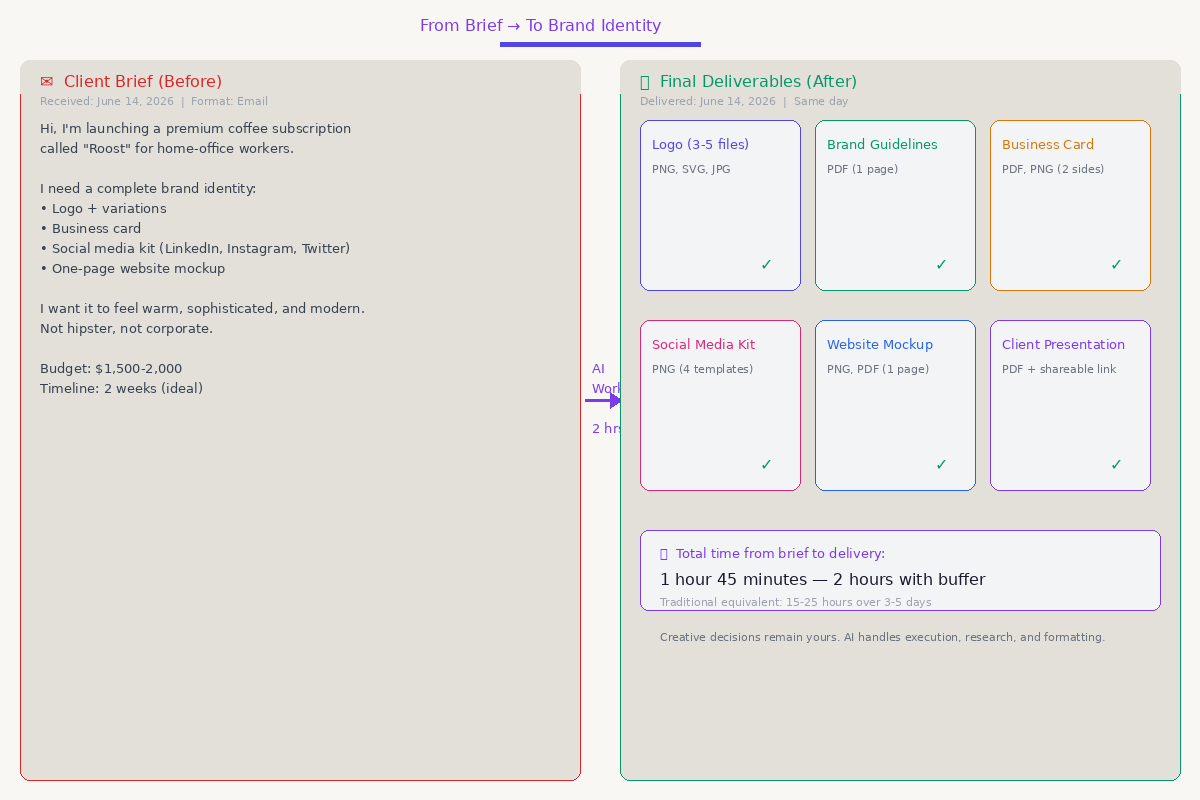
Here's what this workflow delivers:
| Deliverable | Quantity | Format |
| Logo (primary + variations) | 3–5 files | PNG, SVG, JPG |
| Brand guidelines document | 1 | |
| Business card design | 2 sides | PDF, PNG |
| Social media kit | 4 templates | PNG, Canva template |
| Website mockup | 1 page | PNG, PDF |
| Client presentation | 5 slides | PDF + shareable link |
Total time from brief to delivery: 1 hour 45 minutes — 2 hours with buffer for decision-making.
Traditional equivalent: 15–25 hours over 3–5 days.
Quality difference: Zero. The creative decisions are still yours — the brand strategy, the color choices, the logo selection, the typography direction. AI just handled the execution: research, drafting, generation, vectorization, formatting, and exporting.
Variations
Variation 1: Logo-Only Project (45 minutes)
Skip the full brand kit. Generate logo concepts in DALL-E 3 (10 min), vectorize (2 min), present 3 options in Canva (15 min), deliver files (5 min). Total: ~45 min.
Variation 2: Full Brand Identity with Illustrations (3 hours)
Add AI brand illustrations (hero images, patterns, icons) after the logo phase. Generate 5–10 brand-consistent illustrations using the same color palette in DALL-E 3. Use Canva's Background Remover to layer them into mockups.
Variation 3: Upgrade to Midjourney (Premium, $10–$30/mo)
If you have a Midjourney subscription, it offers stronger brand consistency, higher resolutions, and `--style raw` for cleaner vector-friendly outputs. The workflow is identical — just replace DALL-E 3 with Midjourney in Step 2. Best for designers doing 5+ brand projects per month.
Variation 4: Social Media Management Add-On (1 hour extra)
After delivering the brand kit, create a Canva template set for ongoing social media. Use Canva's Magic Studio to generate 30 days of social posts based on the brand kit — the client can edit and schedule themselves.
Variation 5: Working with a Tight Budget ($0 tools)
Troubleshooting
"DALL-E 3 isn't generating what I want"
"The vectorized logo has weird artifacts"
"Client wants changes I can't easily make in AI"
"The workflow feels impersonal"
Potential Limitations (The "Catch")
This workflow is tested and works, but it's worth being transparent about where it can break down:
Tool Volatility
AI tools change constantly. This guide was tested in June 2026 — by next month, Bing Image Creator may adjust its credit system, Vectorizer.ai could shift its pricing, or Claude's free tier limits might change. Always verify current free-tier limits and pricing before committing to a project.
Skill Ceiling for Prompting
The workflow assumes you can write effective prompts. A beginner might struggle to get "minimalist tech startup logo" out of DALL-E 3 without several iterations — which eats into the promised 2-hour timeframe. The prompt library in the follow-up guide is designed to close this gap.
Legal & IP Nuance
AI-generated logos exist in a legal gray area. Can you trademark a DALL-E 3 logo? The US Copyright Office currently requires human authorship for registration. If your client needs a trademarkable logo, consult a lawyer and consider using AI-generated concepts as inspiration rather than final assets. Be transparent with clients about AI usage in your workflow.
Quality Variance
The "final polish" step is not optional. AI-generated vectors often have stray anchor points, uneven curves, or artifacts around text. The cleanup estimate of 2–3 minutes works for simple geometric logos, but complex illustrations may need 10–15 minutes of manual cleanup in Illustrator or Inkscape.
Bottom line: This workflow compresses 80% of the grunt work. The remaining 20% — creative decisions, quality control, and client relationships — is still your job.
Why This Workflow Wins
Most freelance designers fall into one of two traps:
This workflow is the middle path: AI handles the heavy lifting (research, generation, formatting). You handle the creative decisions (strategy, selection, refinement, client relationship).
The result: You deliver better work, faster, with less burnout. Your clients get professional-quality deliverables in hours instead of days. And you double your project capacity without working more hours.
Related Workflows
Last tested: June 14, 2026. Tools and interfaces change — the workflow principles stay the same.
Download n8n Workflow
Get the full client intake pipeline — free, no credit card.
By downloading, you agree to our Privacy Policy. We'll send workflow updates — unsubscribe anytime.